
Feel Accessibility: an accessibility toolbar for WordPress
Quick answer: Feel Accessibility is a free WordPress plugin with a preferences panel so each visitor can adapt your website to the way they read and browse: text size and spacing, contrast, legible typeface, reading guide, read aloud and more. No cookies or third-party scripts. It does not make your website accessible by itself and does not guarantee WCAG compliance: it complements a well-built website; it does not replace one.
Try it right now: this website already uses it. Press the button at the bottom right, or Alt + Shift + A. Your preferences are saved only on your device.
Download it free from WordPress.org
What each visitor can do
Text
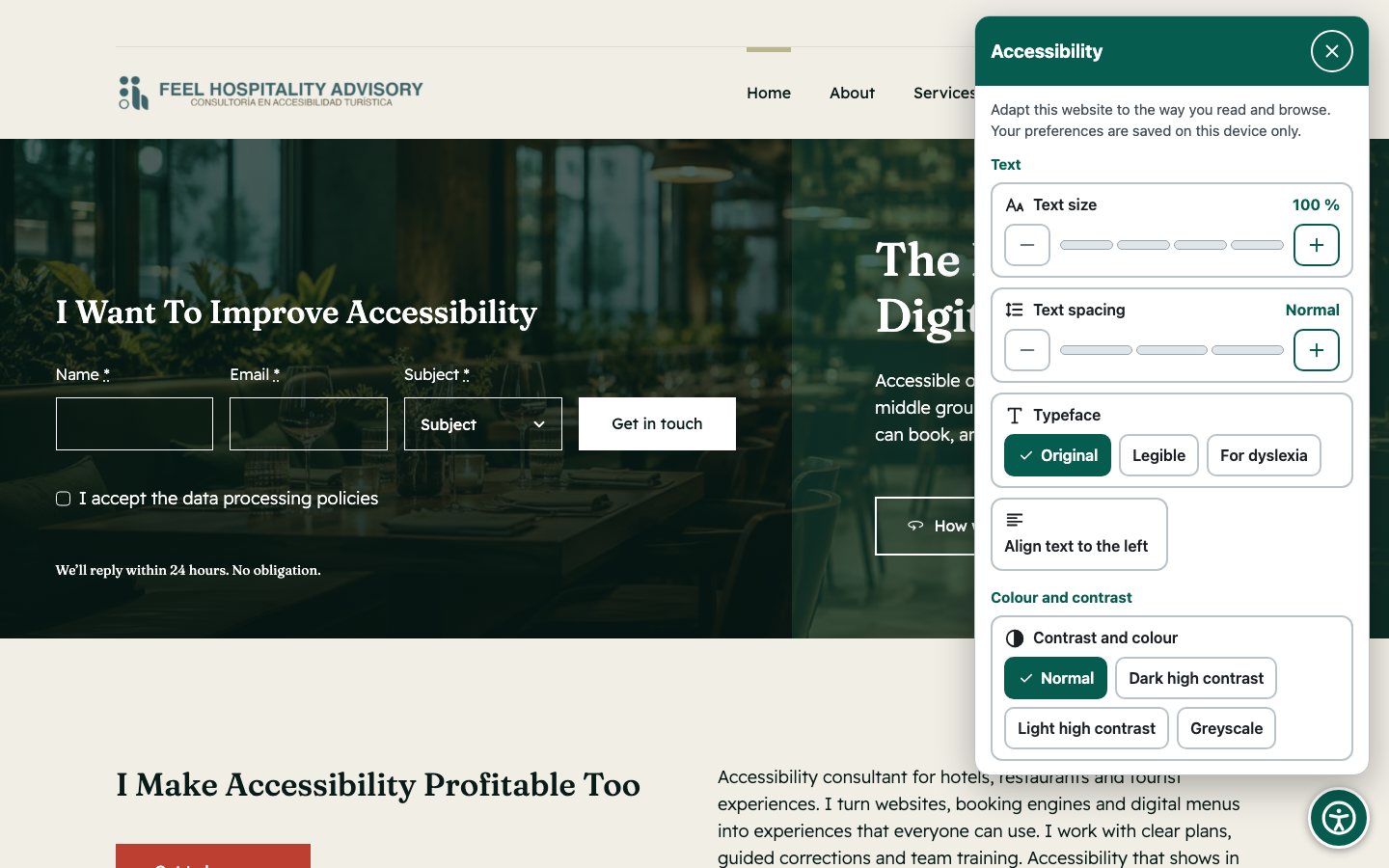
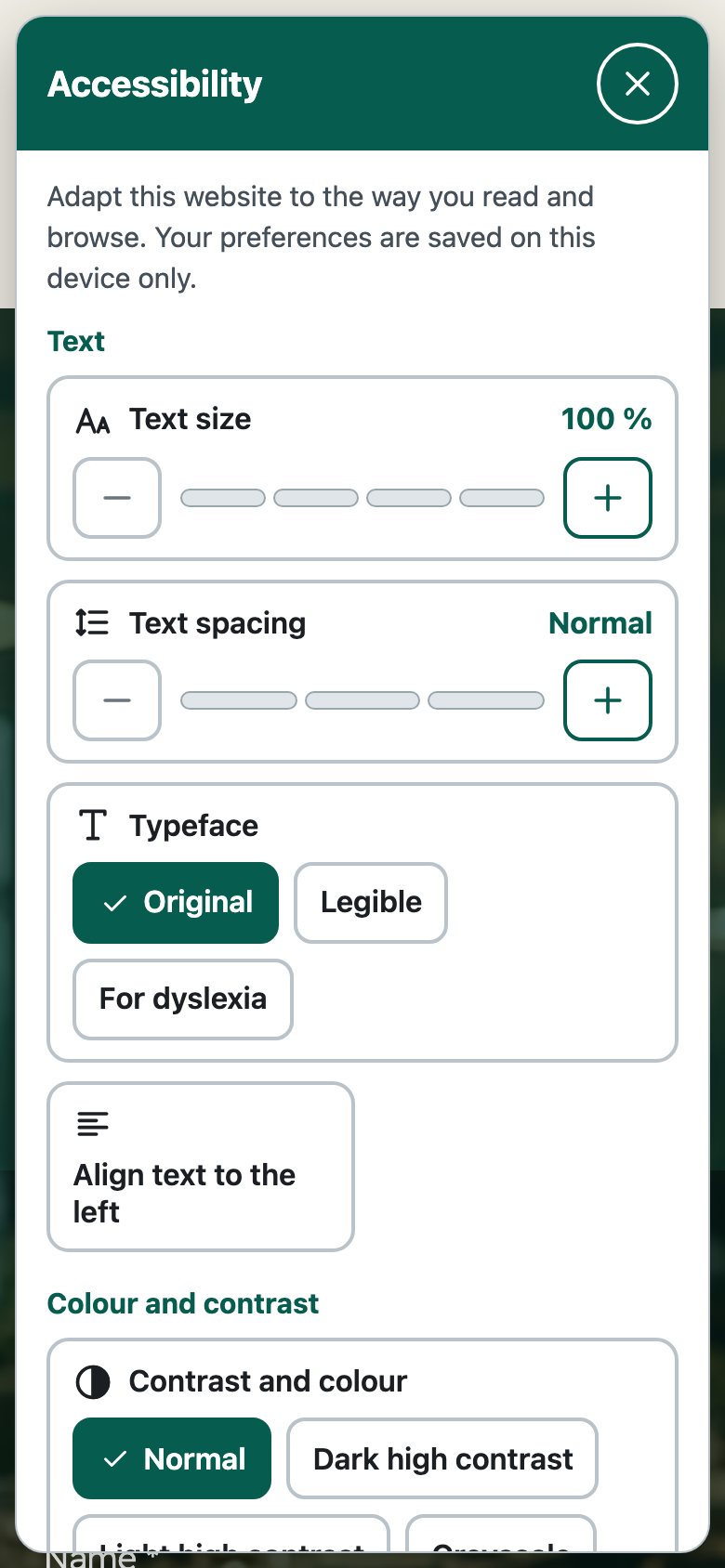
Enlarge it up to 150%, increase the spacing between letters, words and lines, choose a legible typeface or one designed for dyslexia, and align it to the left.
Colour and contrast
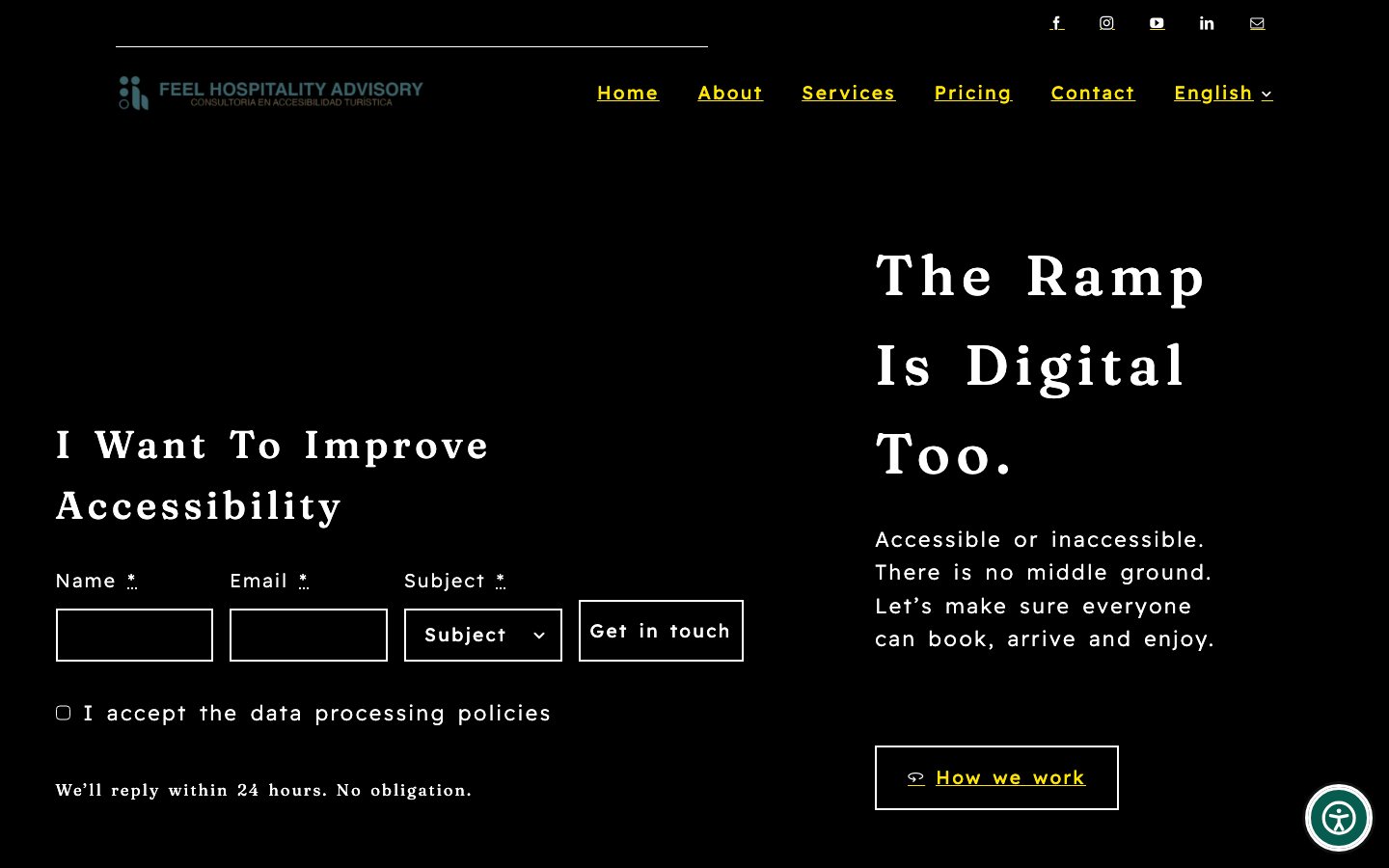
Dark or light high contrast, or greyscale.
Reading and content
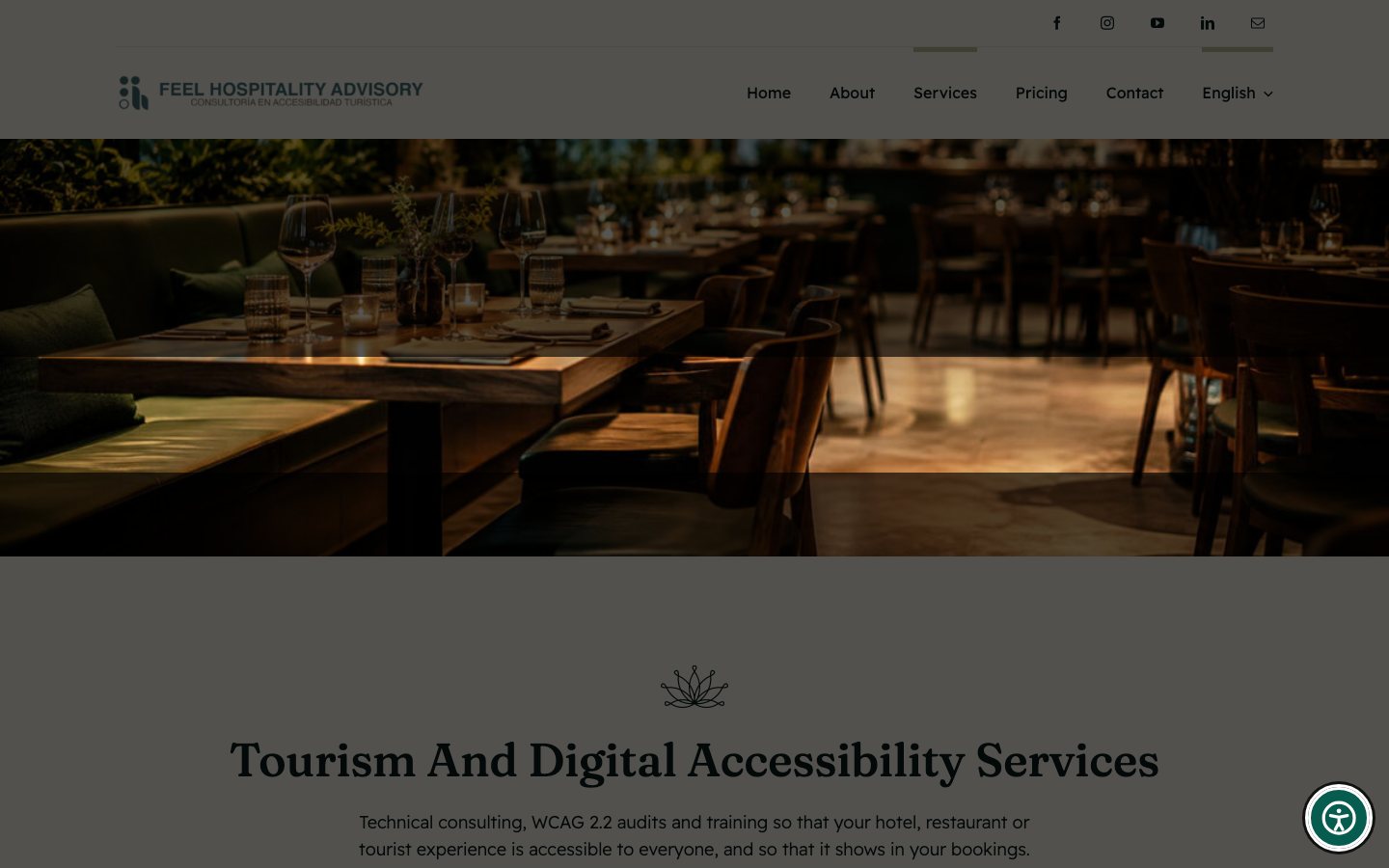
Highlight links and headings, turn on a reading guide (line or mask), hide images and listen to the content read aloud.
Motion and navigation
Pause animations and autoplaying videos, large cursor and very visible keyboard focus.
Available in Spanish, English, Catalan, Galician and Basque, following the page language, and compatible with Polylang.
How it looks
How it differs from an overlay
An overlay is a third-party script that promises to “fix” your website from the browser. To understand what the FTC and accessibility professionals have said, see the FTC final order against accessiBe (22 April 2025) and the Overlay Fact Sheet, signed by more than a thousand professionals. This is the difference in approach:
A typical overlay
- Code: usually loaded from an external server on every page.
- Cookies and tracking: common.
- What it promises: usually promises regulatory compliance.
Feel Accessibility
- Code: in your own WordPress, with no CDN or third-party servers.
- Cookies and tracking: none; preferences are saved in each person’s browser.
- What it promises: nothing; it helps people read, it doesn’t certify.
What it doesn’t do, and how we tested it
We’d rather you know before installing it. Feel Accessibility does not:
- Add descriptions to images, labels to forms or an ordered heading structure.
- Make a site work with a keyboard or a screen reader if it didn’t already.
- Pause carousels built with JavaScript or embedded content from other services.
- Replace a screen reader: reading aloud uses your browser’s voices.
- Protect you from a complaint or make your site “compliant with the law”.
How we made it accessible: native controls and full keyboard support (Esc closes it and returns focus), it respects the reduced-motion preference and moves away from the cookie banner. We tested it with axe-core and automated browsers, not yet with screen readers on real devices: if you use one every day and spot a problem, tell us.
Installation and updates
Feel Accessibility is now in the official WordPress.org directory: see the official plugin page on WordPress.org. To install it:
- Go to Plugins → Add New, search for “Feel Accessibility”, install and activate. The button appears at the bottom right.
- Open Settings → Feel Accessibility and choose the position, size, colour, which options your visitors see and the link to your accessibility statement.
- Optional: tick “Test mode” to see it only as an administrator before publishing it.
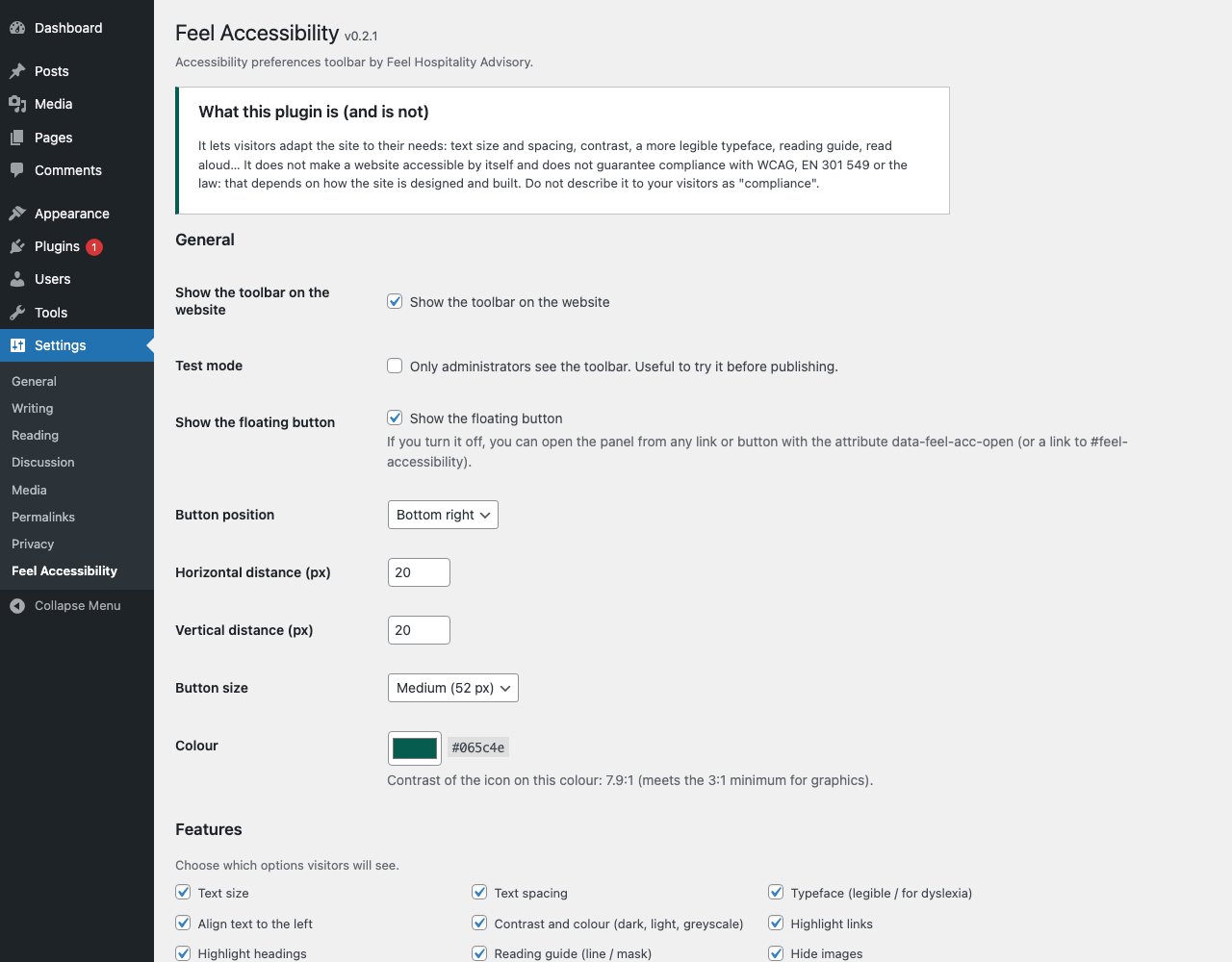
Updates: because it is in the official directory, WordPress will notify you of every new version with “Update now” and you will be able to turn on automatic updates.
Need more than a toolbar?
A preferences toolbar is a complement. Real accessibility is built into the code and the content: technical consulting, accessibility audit (ES) and accessible content for hotels and restaurants. See the plans or get in touch via the contact page. To understand the criteria used to assess a site, read the guide to WCAG 2.2 for hotels and restaurants (ES).
Support the project
Feel Accessibility is free. If it helps you, you can buy us a coffee: it helps us maintain it, improve it and write more accessibility guides. It is voluntary support, not a purchase and not a donation to a charity.
Buy us a coffee on Ko-fiFrequently asked questions
Show the 5 frequently asked questions
Yes. The plugin is free and fully functional. If you need real accessibility work on your site (audit, fixes, content), we offer it as a separate service.
No. It offers reading settings chosen by each visitor, but it doesn’t fix your site’s code or content. Complying with WCAG requires auditing and fixing the site at its source.
It uses no cookies and no third-party scripts. It stores preferences in each person’s browser (localStorage) and sends them to no server. Even so, it is worth mentioning in your privacy policy; check with your adviser.
The panel lives in an isolated space (Shadow DOM), so it should work with any theme. The effects on the page, such as contrast or text size, are checked on each site. It does not load inside the visual editors of Avada, Elementor, Divi, Oxygen or Bricks.
Because it is in the official WordPress.org directory, WordPress notifies you of new versions under Plugins, and you can update with “Update now” or turn on automatic updates.